Automatically on time
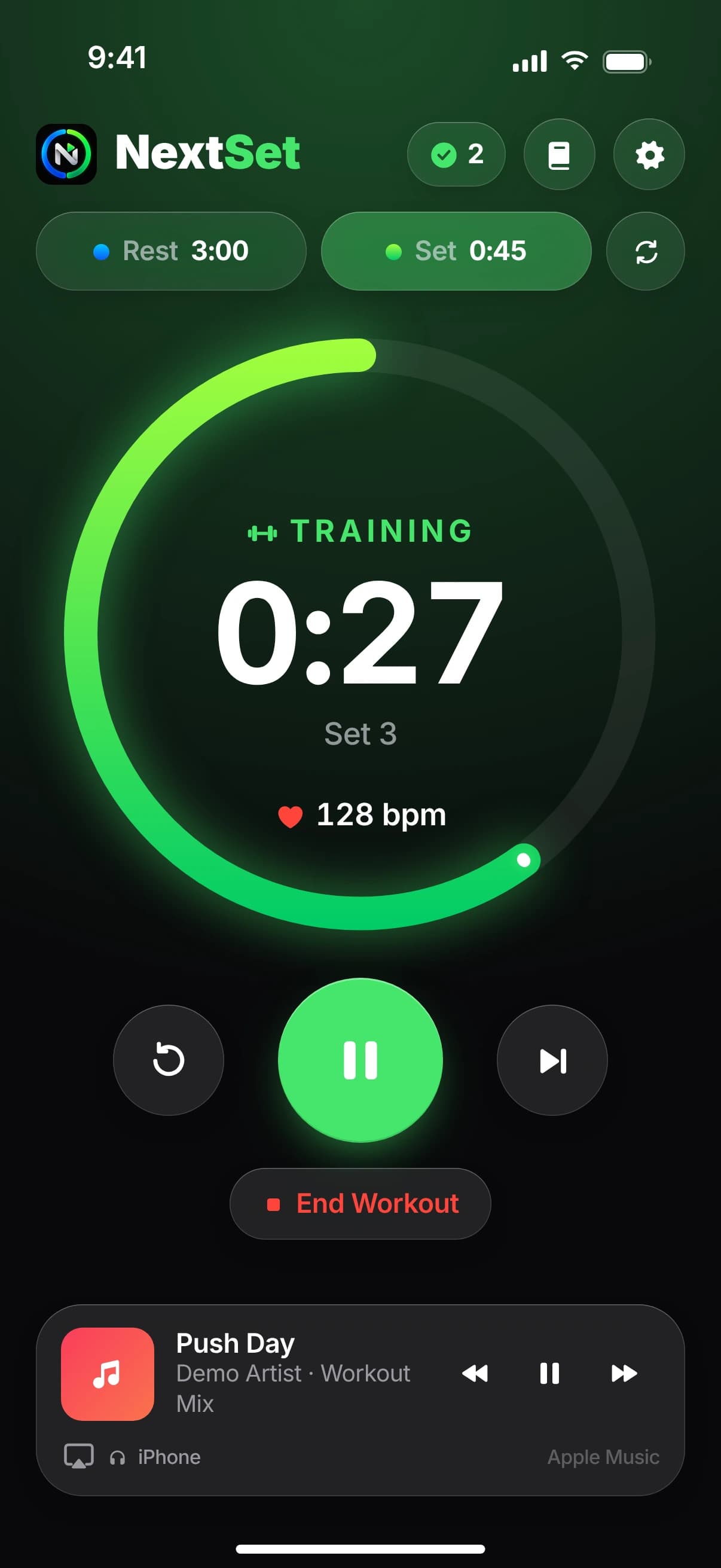
Sets and rest alternate on their own. NextSet counts your sets – no more staring at the clock.
Interval timer & workout log for iPhone, iPad and Apple Watch
NextSet switches between sets and rest on its own, tells you through your AirPods when to go again and keeps every strength workout in its logbook – with progress, personal records and a muscle map.
NextSet isn’t available on the App Store yet. As soon as it is, you’ll find the direct link here.
 Chest & Triceps12814:32
Training
Barbell Bench Press · Set 3 · 80 kg × 8
Set 3
9:41What is NextSet?
In strength training, rest matters: too short and your next set suffers – too long and your workout drags on. NextSet is an interval timer and workout log in one: for anyone who trains with fixed set and rest times at the gym or at home and wants to track progress without paper notes or spreadsheets.
Sets and rest alternate on their own. NextSet counts your sets – no more staring at the clock.
A voice tells you when the set ends and when to go again – even with your iPhone locked. Your music only gets quieter for a moment.
The logbook takes over every workout from the timer. Personal records, charts and the muscle map show what you’ve achieved.
No account, no developer server, no ads. Your data stays on your devices and in your iCloud.
Features
Timer, announcements, logbook and insights work hand in hand – everything on this page is in the app.
Interval timer
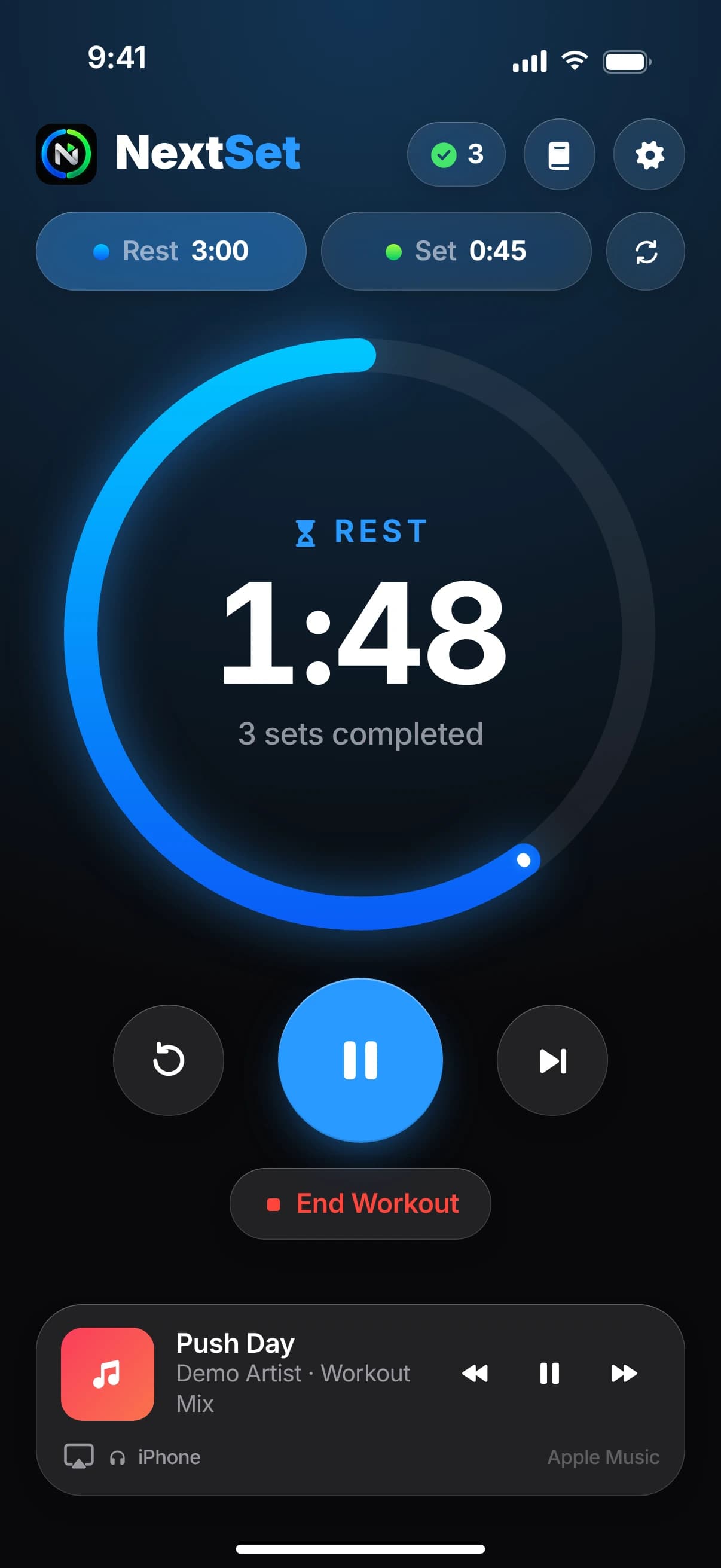
Choose how long a set and a rest last, then start. NextSet switches between them automatically and counts your sets – or waits for you after every phase.
Announcements & music
The announcement plays through your AirPods or the speaker – in the language, voice and speed you choose. Three ticks count down the last seconds, and your music only gets quieter for a moment.
“Set completed. Time to rest!”
“Rest is over. Let's go!”
Lock Screen & Dynamic Island
As a Live Activity, NextSet shows the time left, your exercise, the total time and your heart rate on the Lock Screen and in the Dynamic Island. Pause, finish the set or skip right there – or just ask Siri.
Training
Set 3
Chest & Triceps12814:32Rest
3 sets completed
Live Activity in the Dynamic Island (top) and on the Lock Screen
Logbook & exercises
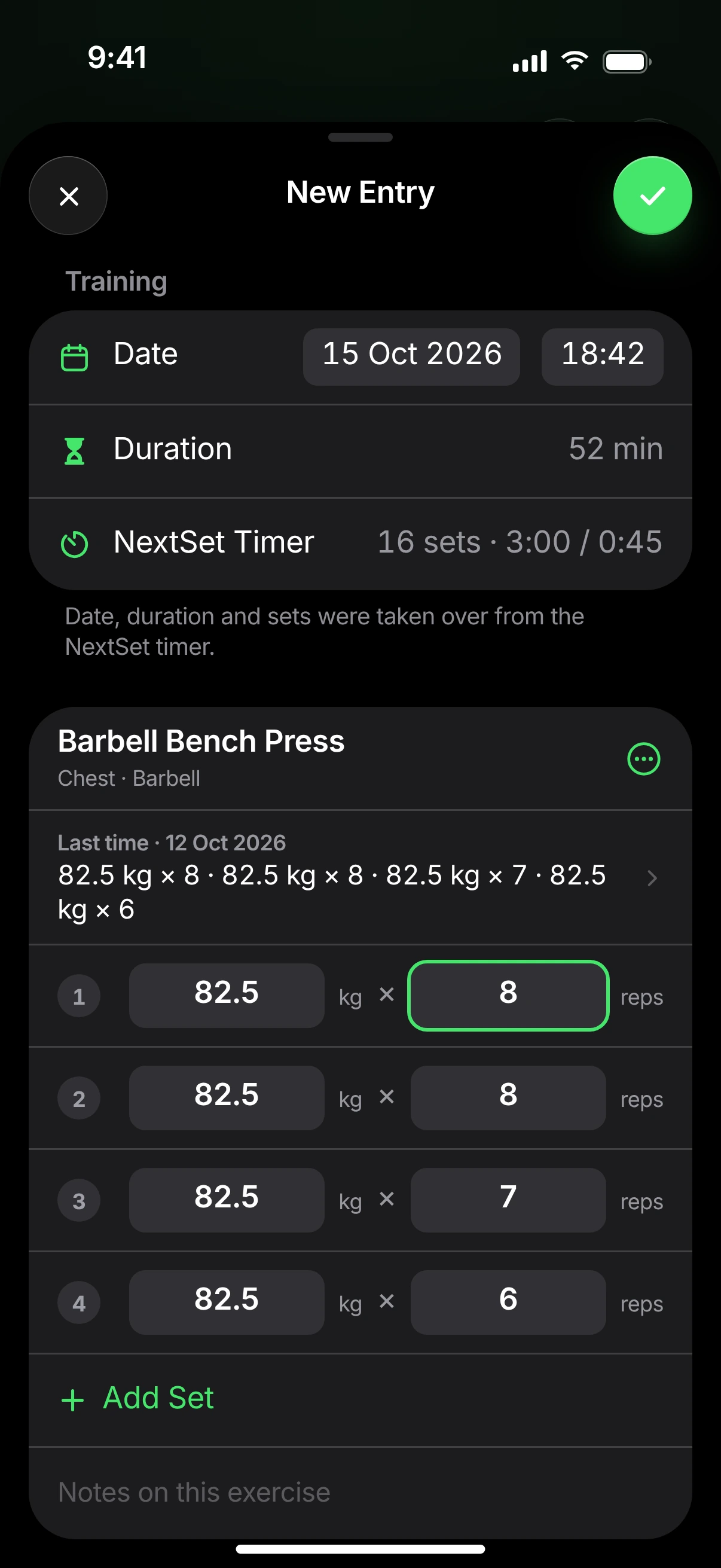
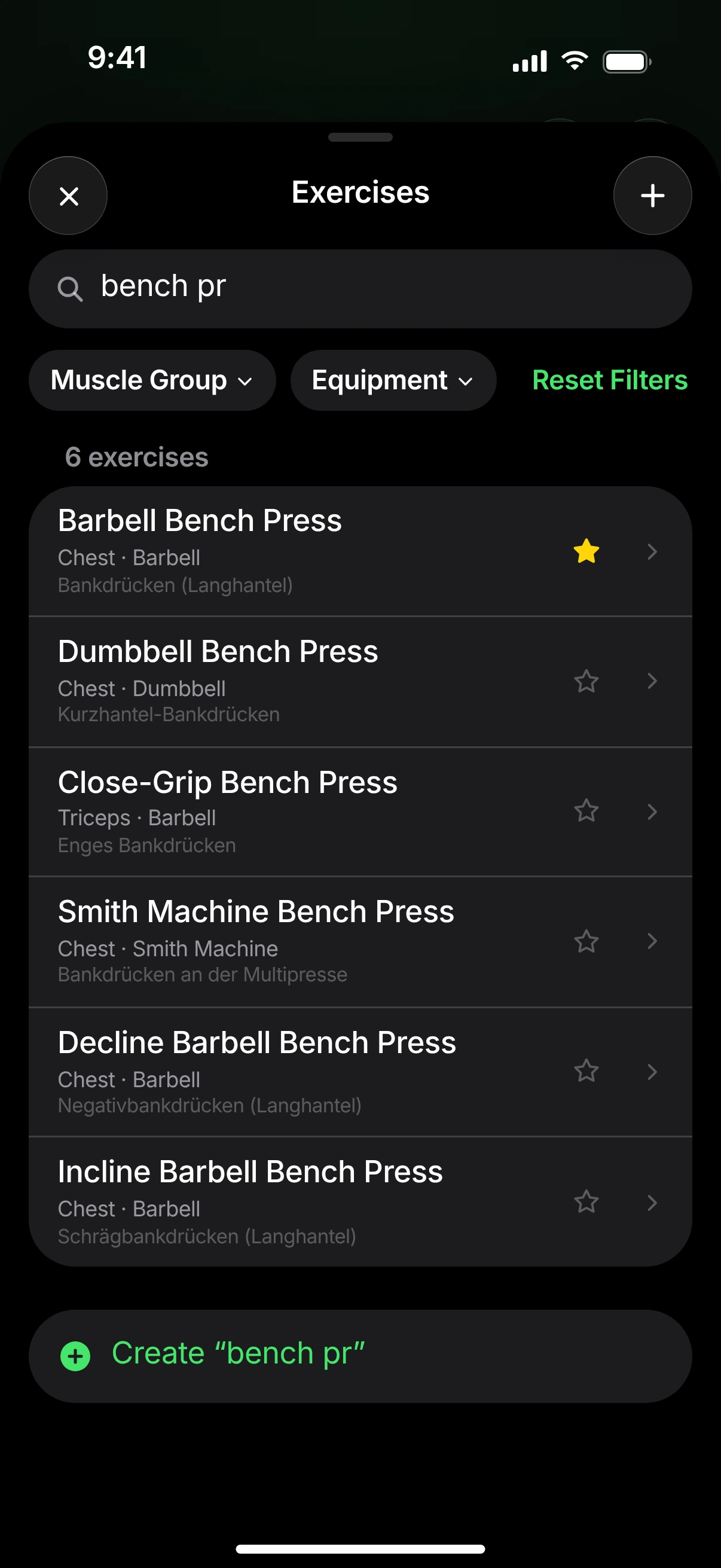
The logbook takes over date, duration and sets from the timer. Enter weight and reps – NextSet suggests last time’s values, and every new set starts from the previous one.
Progress & muscle map
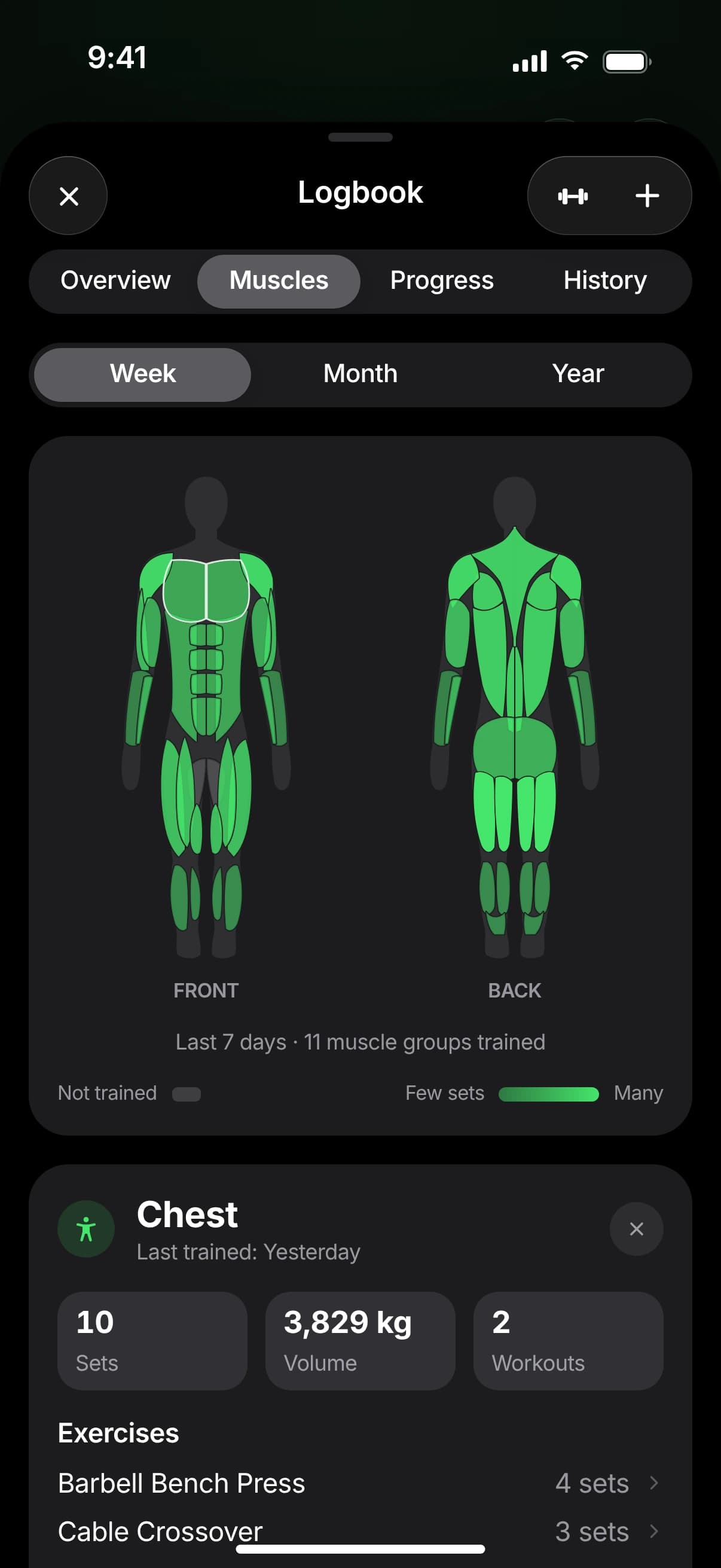
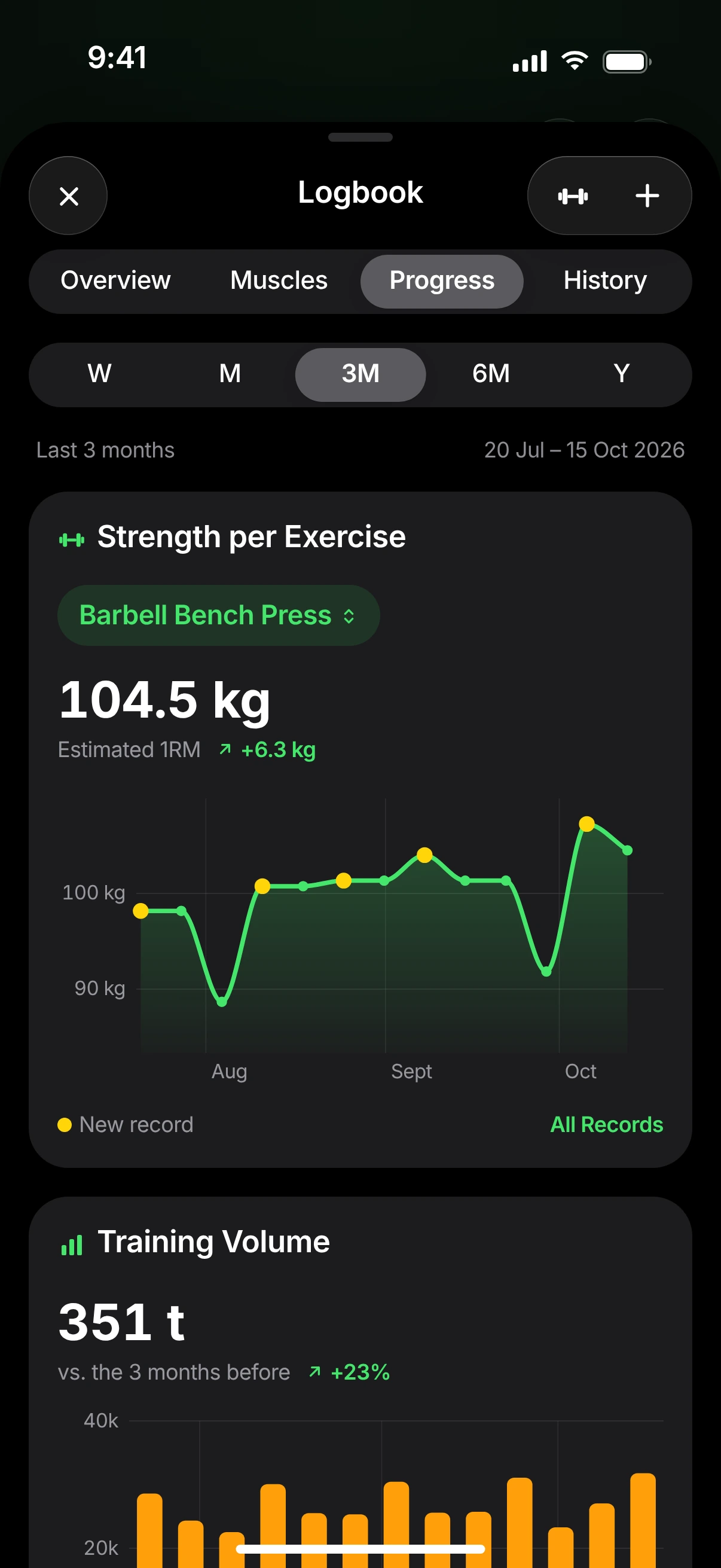
The overview shows your week, your streak and new personal records. Charts follow your strength per exercise, volume, training frequency and duration – from one week to a year. The body map shows which muscles you’ve trained.
Apple Watch
Start, pause and end your workout on Apple Watch. Your watch taps you when a set or a rest begins, logs every set with weight and reps and measures your heart rate – live on your iPhone too.
Set 3
9:41Small things that make a big difference every day.
Start or repeat a workout, pause it or finish the set with one tap – and see your weekly goal, your streak and the muscles you’ve trained without opening the app. Plus a control for Control Center.
Training
0:27
Finished workouts are saved as strength training; heart rate, active energy and body weight appear in the logbook – never twice.
Logbook, your own exercises and favorites sync between iPhone and iPad – encrypted in your private iCloud, without an extra account.
Sidebar, a multi-column logbook, the timer in landscape and keyboard shortcuts like the space bar to start and pause.
Timer, logbook and exercise search don’t need the internet. Changes made offline sync automatically later.
English, German, French, Italian and Spanish – with announcements in the language and voice of your choice.
How NextSet works
From the first start to your progress in the logbook – this is what a workout with NextSet looks like.
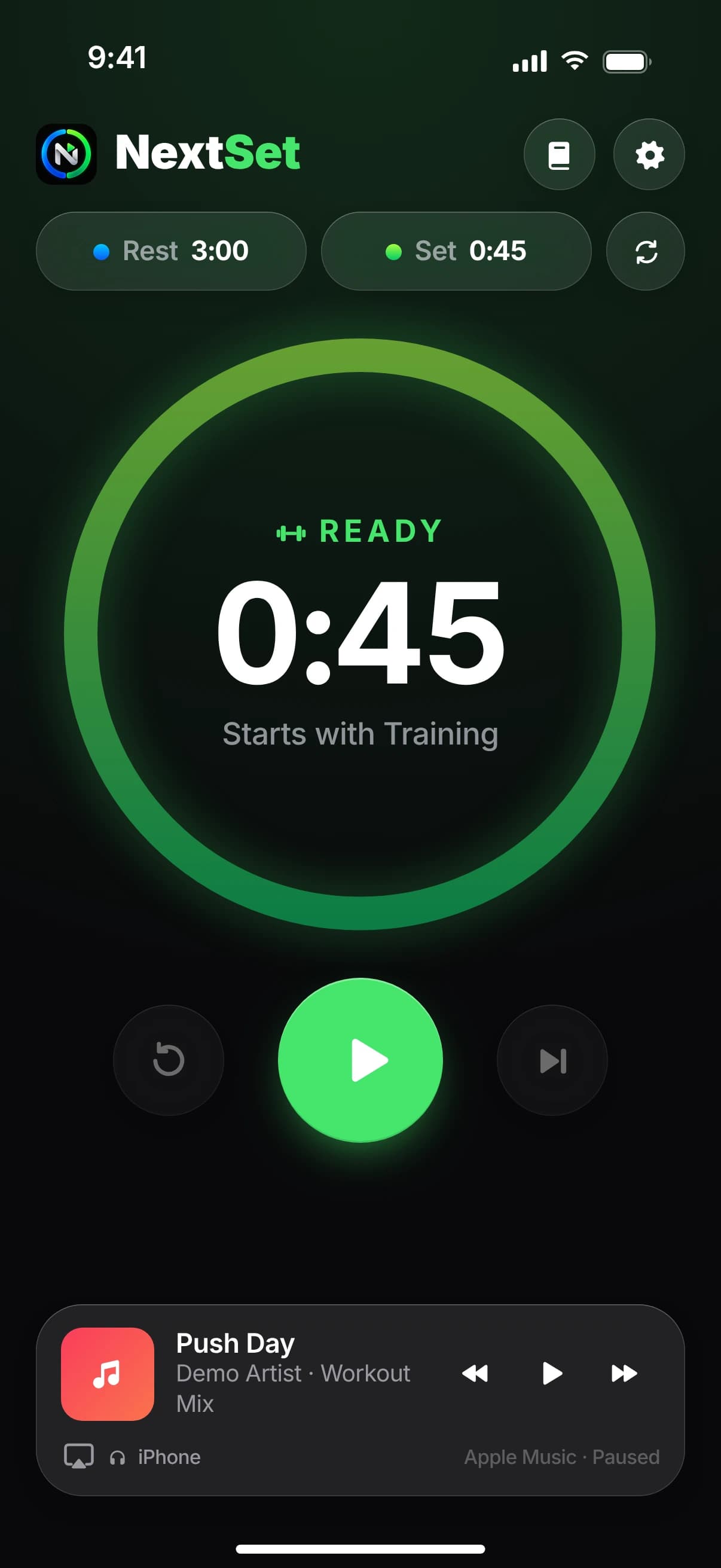
Tap “Rest” and “Set” and choose a duration – for example 3:00 rest and 0:45 per set. NextSet remembers them.
One tap on Start is all it takes. NextSet switches automatically, announces every phase and counts your sets.
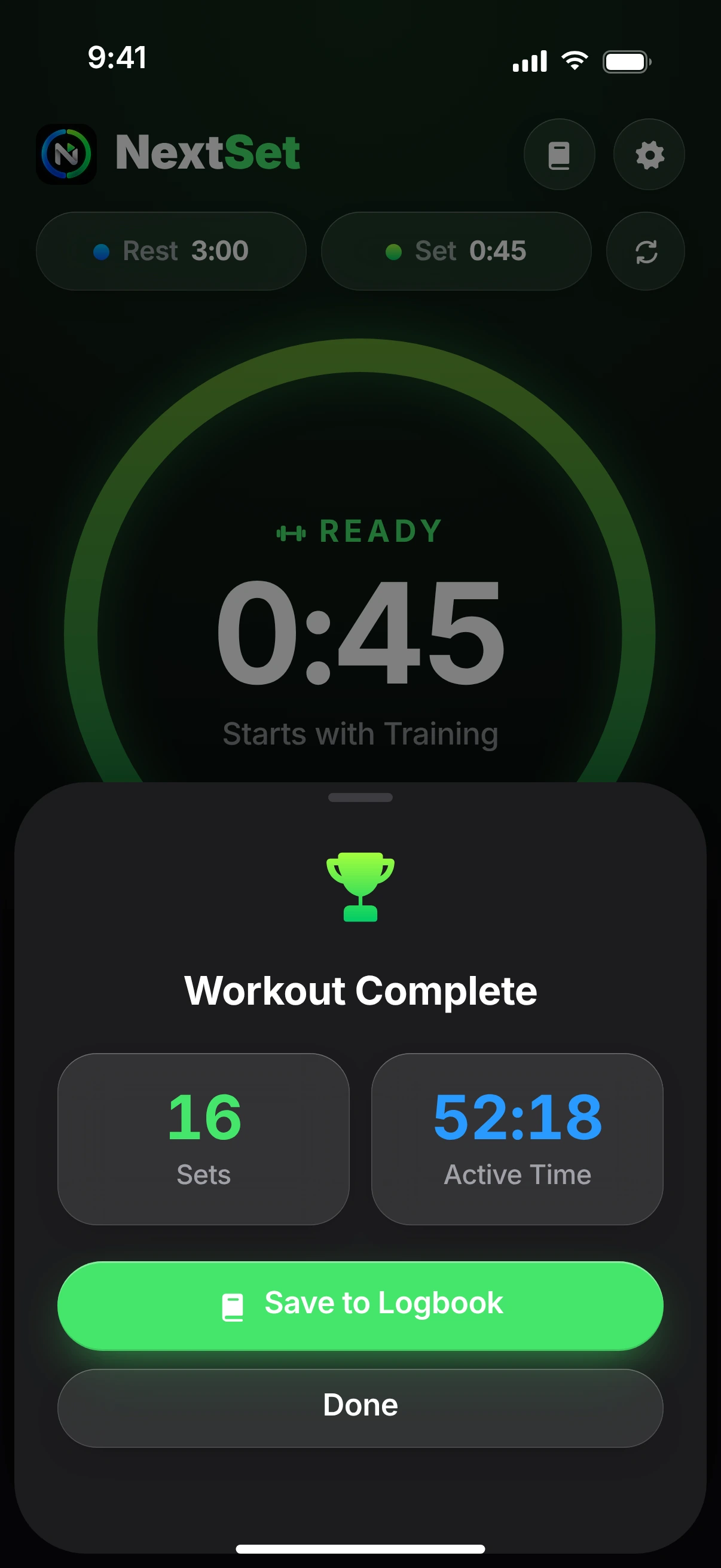
After your workout, the logbook takes over date, duration and sets. You add weight and reps in seconds.
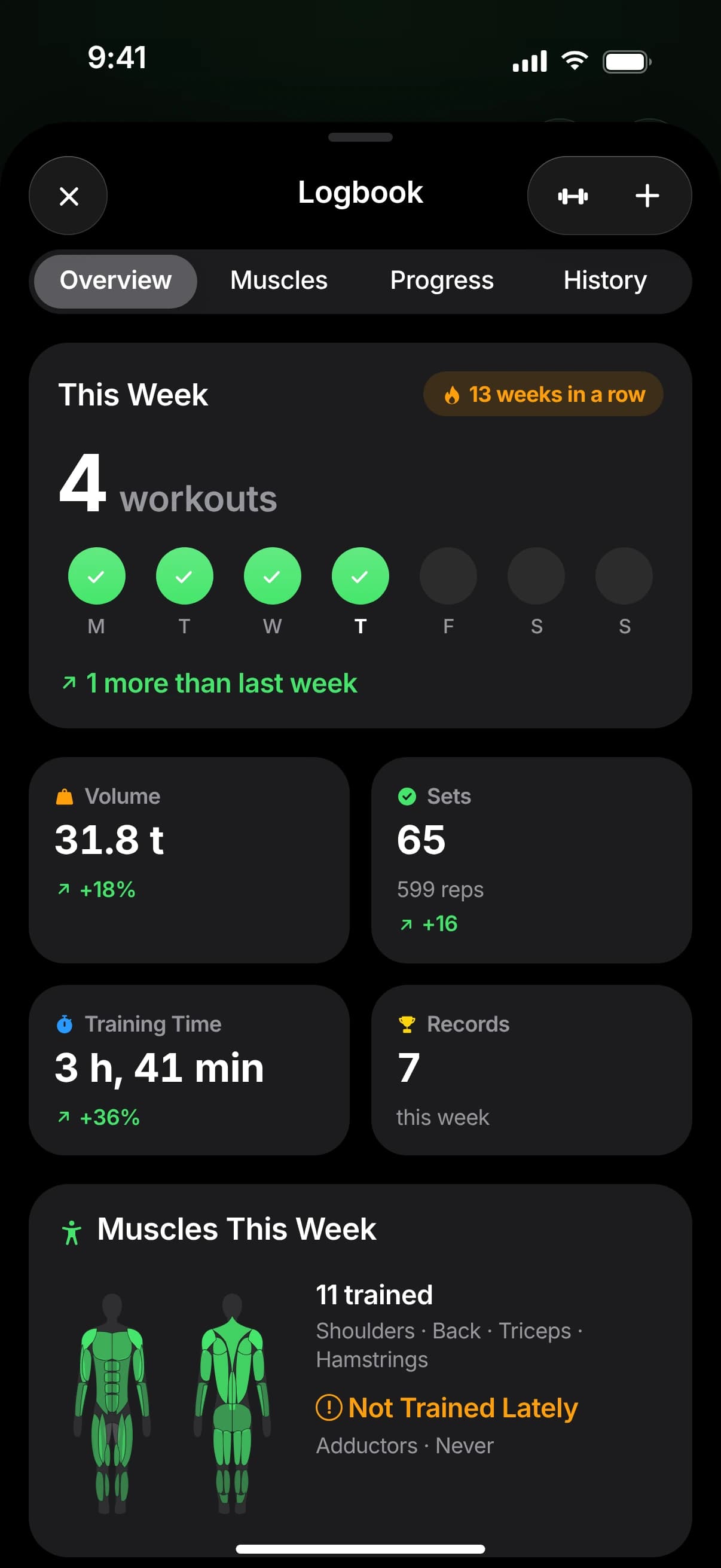
Week, streak, personal records and the muscle map show what you’ve achieved – and what’s next.
Interactive demo
Start the timer, switch between sets and rest, open the logbook or search the exercise database.A recreation of the app in your browser with sample data – nothing is stored or sent anywhere. Announcements use your browser’s speech output.
Loading the demo …
Last announcement
No announcement yet – start the workout.
On the Lock Screen at the same time
Start the workout: the Live Activity shows the same countdown here as the app.
Screenshots
Timer, logbook, progress and settings – tap a picture to enlarge it.
Images: faithful recreations of the NextSet 1.0 interface with sample data. Song titles and values are fictional.
NextSet for iPhone and iPad, with an app for Apple Watch. No account, no ads, no trackers – just your training.
NextSet isn’t available on the App Store yet. As soon as it is, you’ll find the direct link here.
FAQ
NextSet is an interval timer for strength training with a workout log. The app switches between sets and rest automatically, announces every phase, counts your sets and saves your workouts with exercises, weights and reps. From that come personal records, charts and a muscle map.
On iPhone (iOS 26 or later) and iPad (iPadOS 26 or later). The app for Apple Watch (watchOS 26 or later) is included and optional – NextSet works without a watch, too.
Not yet. As soon as NextSet is on the App Store, you’ll find the direct link here. Until then, you can try the app in the interactive demo on this page.
No. NextSet has no account of its own and no server of its own. If you use iCloud, your logbook syncs between iPhone and iPad through your private iCloud – otherwise everything stays on your device.
Yes. The timer, announcements, logbook and search across all 378 exercises work completely offline. Changes made without a connection sync automatically as soon as you’re back online.
Yes. When NextSet is connected to Apple Health, the app stays active during your workout and speaks every announcement itself. Without that connection, time-sensitive notifications take over the announcements – Silent Mode or a Focus can mute them. Alternatively, “Keep Screen On” keeps NextSet in the foreground.
Yes. During an announcement your music only gets quieter for a moment; it never stops. You control Apple Music right below the timer. Other apps like Spotify keep playing as usual; you control them with your headphones or Control Center.
NextSet doesn’t have its own training plans. But you can repeat an earlier workout (for example from the widget): the timer and exercises are taken over, and last time’s values are ready when you log. Your own exercises store default sets that are suggested the first time you log them.
The connection is off by default and can be turned on in Settings under Integrations. NextSet then saves finished workouts in Apple Health as strength training and shows heart rate, active energy and body weight from Health in your logbook. Every workout ends up in Health only once – even when you train with Apple Watch.
No. NextSet is a tool for timing and recording your training – not a medical device and no substitute for medical advice, diagnosis or treatment. Values such as heart rate, active energy or the estimated one-rep max (1RM) come from your entries or your devices and may be inaccurate. Train within your limits, ask a doctor beforehand if you have health concerns – you use the app at your own risk.
German, English, French, Italian and Spanish. The announcements also come in the language and voice of your choice.
Your training data stays on your devices and – if turned on – in your private iCloud, where it’s stored encrypted. NextSet contains no ads, no analytics tools and no trackers. You’ll find the details in the privacy policy.
Right in the app under Settings › “Report a Bug” or “Suggest a Feature” – this opens a prepared email. Or write to info@getnextset.app.
More questions? Go to support